


mail.com: Email app & Cloud
4.512.83K Reviews
App Specs
- Version
- 9.15.1
- Updated On
- License
- Free
- Downloads
- 1,000,000+
- Developer
- 1&1 Mail & Media Inc
- Categories
- Communication
- Platform
- Android
Screenshots
 Analysis by AppCompare
I would judge a mail app by a few practical questions: can I keep separate parts of my life organized, find an old message without fuss, and handle attachments without bouncing between tools? mail.com: Email app & Cloud is worth considering if you want email and cloud file storage in one place, especially if a distinctive email address matters to you. It is less compelling if you already rely on a different provider’s ecosystem and have no reason to move your inbox.
Choosing an email app that fits your routine
Changing email apps is easy to underestimate. The icon is quick to install; the harder part is deciding whether a new address belongs on résumés, bills, school forms, or messages from friends. I’d think first about which inbox you want to use every day and whether you are willing to tell important contacts about a new address. If you only need a reader for an existing account, an app focused on bringing accounts together may be the simpler choice.
For someone setting up a fresh inbox, the address itself can be a deciding factor. A personalized address can feel more suitable for a particular purpose than another generic account, and keeping a dedicated address for sign-ups can help separate those messages from personal correspondence. That separation works best when you make it a habit: use the chosen address consistently for one role rather than spreading messages across several inboxes.
The app is a free communication app from 1&1 Mail & Media Inc, with optional in-app purchases. Its average rating is 4.4 from around 145,000 ratings, and it has over 1 million installs. Those figures suggest that it has found an audience, but they cannot tell you whether its approach suits your own routine. I’d treat them as context, then focus on the address, storage, and account setup you actually need.
Where a mail.com address can be useful
The custom-address option is the feature I’d examine before importing a lot of daily habits. If you are starting a new account, choosing an address that is easy to say aloud and type can save small hassles later. I would avoid using an address that is clever but hard to spell for job applications or bookings; a clear, readable choice is more useful than a novelty one. The app’s address options may also appeal to someone who wants a separate identity for a side project or community activity.
There is a trade-off: a new address does not automatically replace the one people already know. I’d keep the old inbox available during a transition and update important services gradually. Start with accounts where missing a message would matter, such as bills or appointments, then move less important subscriptions when convenient. This staged approach is less stressful than trying to change every contact in one sitting.
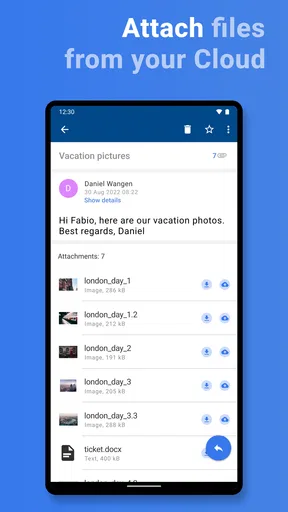
The built-in cloud storage can be handy when an email attachment is something you will need again rather than a file to read once and forget. Keeping a copy of a travel document or a reference photo alongside the account may make it easier to retrieve later. I would still keep another copy of anything irreplaceable: a convenient place to store files is not, by itself, a reason to treat one service as the only backup.
Worth Reading Before You Choose

EA SPORTS FC Mobile 26 Is a Bigger Football Game, but It Takes Time

Flipboard Shows What News Apps Must Do Beyond the Feed

Switching to Android Auto Means Rethinking Your Driving Routine

Google Calendar Makes a Crowded Week Easier to Manage

Ludo King Makes the Most of the Minutes Between Plans

Baby Panda World Brings Quick Play to Modern Phones, but Its Game Library Feels Busy
A realistic day with email and files together
Imagine receiving a confirmation message for an appointment while you are away from your computer. You can keep the email in the account and place a related document in the cloud storage, then return to both when you need to prepare. The practical gain is not that the app changes what email can do; it is that the message and a related file are available through the same service. That can reduce the number of places you have to check when you are in a hurry.
A useful habit is to give files names that will still make sense months later, rather than relying on memory or a vague attachment label. If you save a photo or document, a descriptive name makes it easier to recognize when you revisit it. I’d also be selective: using storage for a few useful reference files is more manageable than treating it as a dumping ground for every attachment in the inbox.
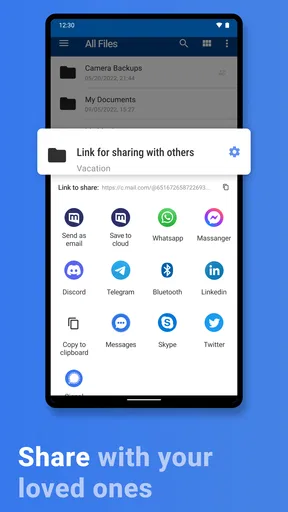
That workflow is best for light, personal organization. People collaborating on shared documents or constantly exchanging large work files may prefer a dedicated file-sharing service or a workplace platform designed around joint editing. Keeping email and storage together is convenient, but it does not replace every tool used by a team.
Security habits matter more than a reassuring label
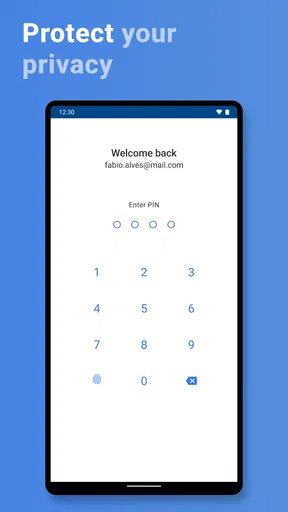
Email often acts as the recovery route for other accounts, so I would secure it before making it the center of a new digital routine. Turn on available account-protection options, choose a password you do not reuse elsewhere, and be cautious with unexpected links or attachments. A spam filter can reduce unwanted mail, but it cannot make every message safe; checking who sent a message and what it asks you to do still matters.
One practical way to limit exposure is to reserve your main address for people and services you trust, while using a separate address for low-priority registrations when that fits your needs. This can make it easier to spot when a message is unrelated to your main correspondence. It also creates a little extra account management, so I would only split addresses if I can remember which one I used.
Before relying on any email service for sensitive material, I’d review its current account and privacy settings directly and make sure the recovery details are up to date. That is particularly important if the inbox will receive password-reset messages. The app’s security tools are useful, but sensible account habits remain part of the job.
How it compares with familiar alternatives
Compared with the default email app that comes with a phone, this service is more interesting when you want its own address and the connected storage, rather than simply a place to read mail. A built-in mail client may be more convenient if you already have an address you plan to keep and only want one interface for existing accounts. The right choice depends on whether you are choosing an email provider or just choosing an app to view mail.
Large general-purpose email services may be a better fit for people who already use their calendars, contacts, or office tools heavily. I would not switch away from a well-established setup just for a different inbox appearance. On the other hand, someone who wants a fresh address and appreciates having file storage close at hand may find this combination more appealing than adding another standalone utility.
Specialist privacy-focused services can suit readers who place advanced privacy controls above convenience or who need a particular security model. I would compare their current terms and tools directly rather than assuming all email services protect messages in the same way. For everyday correspondence, the deciding point may be ease of use; for sensitive work, the service’s specific protections and your organization’s rules should take priority.
Switching without losing track of important mail
If you decide to try a new address, make a short checklist before changing anything: identify essential accounts, update recovery information, and tell the people who need the new address. Keep the old account accessible while messages are still arriving there. I find a gradual move more reliable than trying to remember every subscription, contact, and login at once.
It is also worth deciding what “separate” means before creating multiple addresses. A personal inbox and a sign-up inbox can make messages easier to sort, but only if you check both often enough. If you already struggle to keep up with one account, adding another may create more missed messages rather than less clutter. In that case, a single address with a consistent filing routine may be the better answer.
The service is free to start, while in-app purchases are available; I would check the purchase details in the app before committing to anything paid. It is rated for Everyone, and its current version is 9.2.1. The minimum operating-system requirement is version 9, so it is sensible to confirm compatibility on an older device before planning a switch. It was released on May 5, 2011, and the long-running presence may reassure some users, though it does not replace checking whether the current app meets their needs.
On the practical side, try the account with low-risk correspondence first. Send a message to an address you control, test how you want to organize incoming mail, and save a nonessential file to see whether the combined setup feels natural. This small trial can reveal whether the address is comfortable to use before you update important services.
Who should look elsewhere
I would hesitate to recommend it to someone who needs a particular workplace account, advanced team collaboration, or a carefully specified privacy setup without first checking that the service matches those requirements. It is also not the obvious choice for a person who is happy with an existing provider and has no interest in a new address or attached storage. In those cases, switching adds effort without a clear everyday payoff.
Likewise, if your main goal is to manage many unrelated accounts in one place, compare how well your preferred mail client handles those accounts before moving your primary address. A provider’s own app can be a straightforward home for that provider’s inbox, but it is not automatically the most flexible hub for every account you own. I would choose based on the job, not on the assumption that one app should do everything.
My first impressions of the app
Hey there! So, I’ve been diving into the world of email apps lately, and I just had to share my thoughts on mail.com: Email app & Cloud. You know how it goes, finding the right email app can be a bit of a journey. But, let me break it down for you.
Features and everyday organization
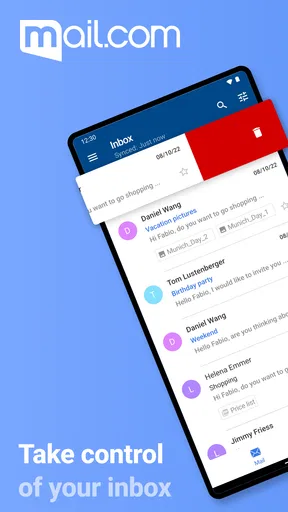
When I first installed the app, I was immediately struck by its clean interface. It's like they took all the clutter out and left us with the good stuff. I’m talking sleek design, intuitive navigation, and a user-friendly layout. Honestly, it feels like a breath of fresh air compared to some of the other apps I've tried. Plus, who doesn’t love that feeling of having everything organized?
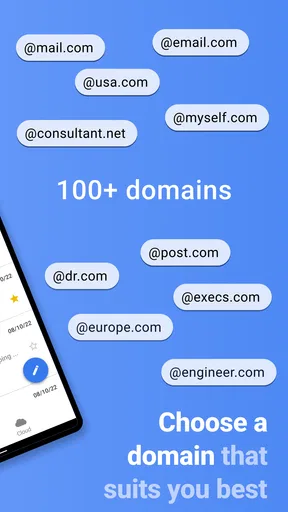
Alright, let’s get into the nitty-gritty of what this app offers. First off, you’ve got the customizable email addresses. Yeah, you heard me right. You can choose from a variety of domains, which is super handy if you’re trying to keep personal and professional emails separate. No more juggling multiple apps!
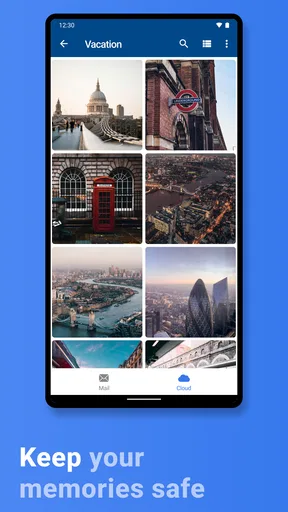
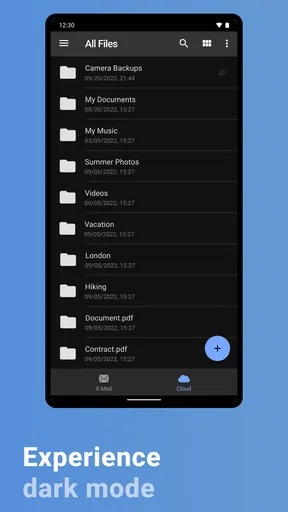
Now, let’s talk about the cloud storage. They give you 2GB for free, which is great if you’re looking to keep your inbox clutter-free. I’ve been using it to store important documents and photos, and it’s been a lifesaver. Plus, it’s all right there with your email, so no more hopping between apps.
Security and privacy
In today’s world, online security is a big deal. mail.com doesn’t mess around here. They’ve got two-factor authentication, which is a must for keeping your emails safe. And they don’t just stop there. Their spam filter is pretty robust, meaning less time wading through junk mail. I’ve noticed a significant drop in spam since I started using the app. It’s nice to open my inbox and see only the stuff that matters.
Using it across accounts and devices
Let’s chat about usability. The app performs smoothly on both Android and iOS. I haven’t had any issues with lag or crashes, which is always a plus in my book. The search function is quick and efficient. You know those times when you’re frantically searching for an email from two months ago? Yeah, it handles that like a pro.
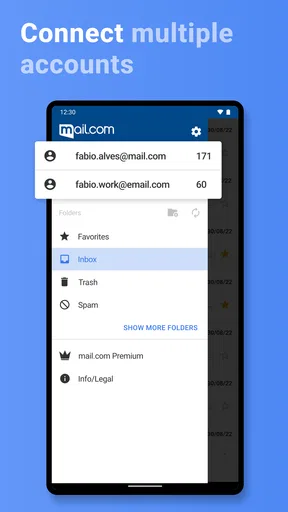
I also love how the app supports multiple email accounts. You can switch between them effortlessly, which is a game-changer if you’re managing work, personal, and other accounts. It’s all about making life easier, right?
Personalizing the experience
One of the things I really appreciate is the level of customization the app offers. You can tweak the notification settings, so you’re only alerted for important emails. The themes are a nice touch too, letting you personalize the look and feel of the app to match your vibe.
My recommendation
So, would I recommend it? Absolutely. It ticks all the boxes for me—clean design, robust features, and top-notch security. Whether you’re looking to streamline your email management or just need a reliable app that won’t crash on you, this one’s worth a shot. Give it a try, and let me know what you think!
In the end, finding the right email app is all about what works best for you. But if you’re anything like me and appreciate simplicity, security, and efficiency, then this app might just be your new best friend. Happy emailing!
Pros
- User-friendly interface for easy navigation.
- Supports multiple email accounts seamlessly.
- Generous cloud storage options available.
- Integrated calendar for efficient scheduling.
- Strong security features with encryption.
Cons
- Occasional syncing issues with some devices.
- Limited customization options for themes.
- Ads present in the free version.
- No offline access without premium.
- Customer support response can be slow.
FAQs for mail.com: Email app & Cloud
What features does the mail.com app offer?
The mail.com app provides a comprehensive email experience with features such as customizable email domains, cloud storage, and an intuitive interface. Users can manage multiple accounts, organize emails with folders, and access their mail across devices. Additionally, the app includes spam filters and encryption options for enhanced security.
Is mail.com secure for handling sensitive information?
Yes, mail.com prioritizes security with its advanced encryption protocols to protect your emails and data. The app also includes spam and virus filters to safeguard against malicious threats. Users can enable two-factor authentication for added account security, ensuring that sensitive information remains protected.
Can I access mail.com on multiple devices?
Absolutely. The mail.com app is available on both Android and iOS, allowing users to access their emails on smartphones and tablets. It offers seamless synchronization, so any changes made on one device are reflected on others, ensuring you stay updated wherever you are.
How much cloud storage does mail.com provide?
Mail.com offers 2 GB of free cloud storage for its users. This allows you to store important documents and files securely in the cloud. For users needing more space, there are premium plans available that offer increased storage capacity and additional features.
Does mail.com support multiple email accounts?
Yes, mail.com supports the management of multiple email accounts. Users can easily switch between different email addresses within the app, making it convenient to organize personal and professional communications in one place. The app supports both IMAP and POP3 protocols for versatile account management.


